
From Cut List Spreadsheet to Cutting Plan
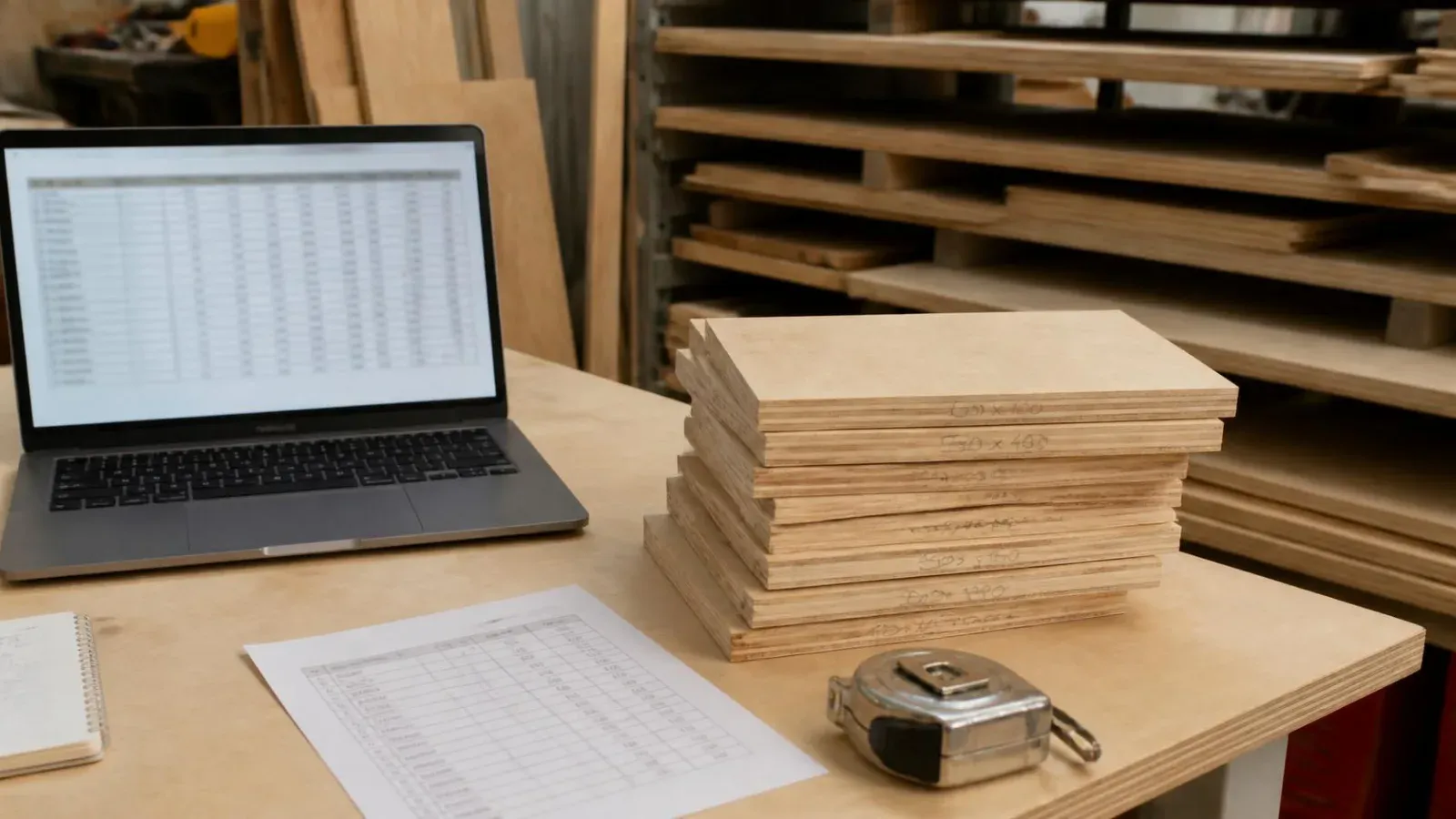
Most workshops already have a cut list spreadsheet. It started as a quick table for one job, picked up a few extra columns, and now every job gets copied from the last one. It works, right up to the point where you want to lay the parts out on sheets, and then someone retypes the whole thing into another program by hand.
You should not have to type it twice. A spreadsheet laid out the right way imports straight into an optimiser. Here is how to set one up so it does.
What columns should a cut list spreadsheet have?
A cut list spreadsheet needs one row per part type and, at minimum, four columns: a label, the length, the width and the quantity. Everything else is useful but optional. A good working set is:
| Label | Length | Width | Quantity | Material | Grain | Edge banding |
|---|---|---|---|---|---|---|
| Side | 720 | 560 | 6 | 18mm birch ply | Yes | Yes,No,No,No |
| Base | 564 | 560 | 3 | 18mm birch ply | No | Yes,No,No,No |
| Rail | 564 | 100 | 6 | 18mm birch ply | No | No |
| Door | 715 | 597 | 3 | 18mm birch ply | Yes | Yes |
The edge banding column takes either one value for every edge (“Yes” or “No”) or four values in a fixed order, which in Cutzilla is left, right, top, bottom. Your spreadsheet will put quotes round the four-value cells when it saves the CSV, so the commas inside them do not split the column.
Keep the header names plain and obvious. Most importers match columns by name, so “Length”, “Width” and “Qty” will be recognised where “L (finished, mm)” may not. Cutzilla, for example, looks for headers containing words like label or name, length, width and qty or quantity, matches what it finds, and lets you correct the mapping before anything is imported.
How should you enter the sizes?
Enter every size as a bare number in one unit, with the unit in the header rather than the cell. “720” imports; “720mm”, “72cm” and “720 approx” do not, or worse, import as something else. Pick millimetres or inches for the whole sheet and stick to it.
Decide which dimension is the length and use it consistently. If a part has grain, the length should be the dimension that runs with the grain, so that “Yes” in the grain column means the same thing on every row. A door entered as 597 × 715 on one job and 715 × 597 on the next is how you end up with grain running across it.
How do you save a spreadsheet as a CSV?
Save a copy of the sheet as CSV, which is a plain-text file that any optimiser can read. In Excel that is File, Save As, then “CSV UTF-8 (Comma delimited)”. In Google Sheets it is File, Download, “Comma-separated values”. In Numbers it is File, Export To, CSV.
Before you save, tidy the sheet:
- One header row at the top, nothing above it. No job title in cell A1.
- No merged cells, no subtotals, no blank rows in the middle.
- One sheet only. A CSV holds one tab; the others are dropped.
- Watch your decimal separator. In some regional settings Excel writes “17,5” for 17.5, which a comma-separated file reads as two columns. Use whole millimetres, or check the settings.
Keep the original spreadsheet as your master. The CSV is just the copy you hand to the software.
What happens when you import the CSV?
In a cut list optimiser the import is usually three steps: choose the file, check the columns were matched correctly, and review the parts before they go in. In Cutzilla, the review step shows every row in a grid so you can fix a typo or a missing quantity before the layout is worked out. Then you set your sheet size and kerf, run the optimisation, and the parts come back laid out on boards.
The first import takes a few minutes while you check the mapping. After that, a spreadsheet built the same way imports the same way every time.
What breaks a cut list import?
Nearly every failed import comes down to the same handful of problems:
- Quantity per unit instead of total, so a three-cabinet job imports one cabinet’s worth.
- Units in the cells (“720mm”) instead of the header.
- A summary row at the bottom that imports as a part called “Total”.
- Edge banding written in prose (“front only”) instead of yes/no or one value per edge.
- Hidden columns that still export and confuse the column matching.
Fix those in the master spreadsheet once and you will not see them again. If you want to try the whole route from spreadsheet to cutting plan before committing to anything, the free cut list optimiser page covers what the free plan includes.
Try it free. Import your cut list spreadsheet into Cutzilla and get a cutting plan in the browser, with nothing to install. Start free.